Getting Started With MedReddie
Welcome to the MedReddie Platform. This guide gives you tips and tricks from the team to make sure you get the most out of the platfrom. If at any time you want to ask specific questions, would like a guided walk through, or have suggestions on how to improve the platform, you can book a call with someone on the MedReddie Team!
Reaching Out To Suppliers
Requesting Support
Downloading Questions, Solutions, and More
Uploading Capital Equipment Lists
Managing Initiative Status
Adding Collaborators and Co-Workers
Once logged in, select the Team tab on the left hand side.
Select Invite Team Member on the right hand side.
Enter the email of the person you want to invite and select from the available roles,
then select Add.
The email must be of the same domain as your team owner. For instance, if your team
owner’s email is bob@company.com, then jane@company.com could be invited as a
team member, but joe@school.ca could not. If you need to add someone with a
different email domain, consider inviting them as a collaborator to a specific initiative.
After selecting Add, the invited team member should then receive an email with a
link. Following the link and following the instructions will allow the team member to
finishing setting up their account and choose a password.
Once the team member has finished setting up their account, they can login at
https://login.medreddie.com/auth/login
Creating An Initiative
Creating an initiative is the best way to manage your RFx or solution search. It enables you to bring all of the stake holders to one place and request feedback on specific questions and solutions. To get started, click on the “Initiative” menu option.
From here we can click on “Add Initiative” to create your first initiative.
Change Your Profile Information
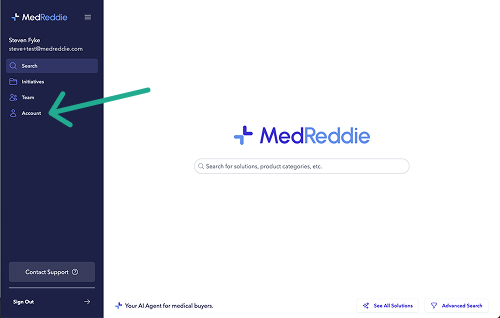
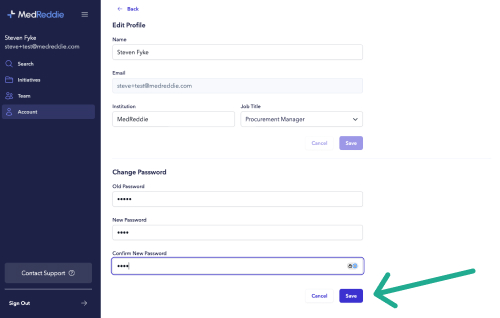
You can update your profile information and change your password at any time. To get started from the home screen, pick the “Account” menu option.
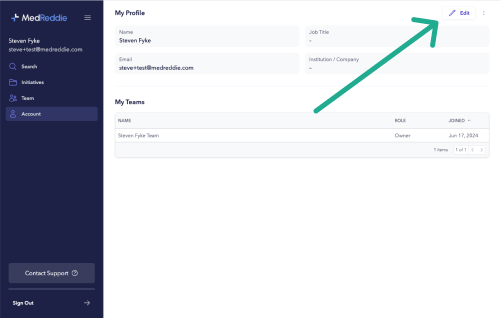
From here you can review all of your information. If you would like to make changes, simply press the “Edit” button.
From here you can edit your personal details including your Name, Role, and Institution / Organization. Once you update the information, the “Save” button will be enabled and you can save your changes.
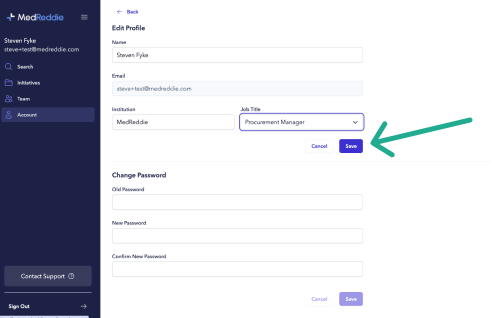
Similarly you can update your password by entering your current password and a new password. When selecting a new password, remember to add at least 1 upper case letter, 1 lower case letter, 1 number and 1 symbol.
Forgot Your Password
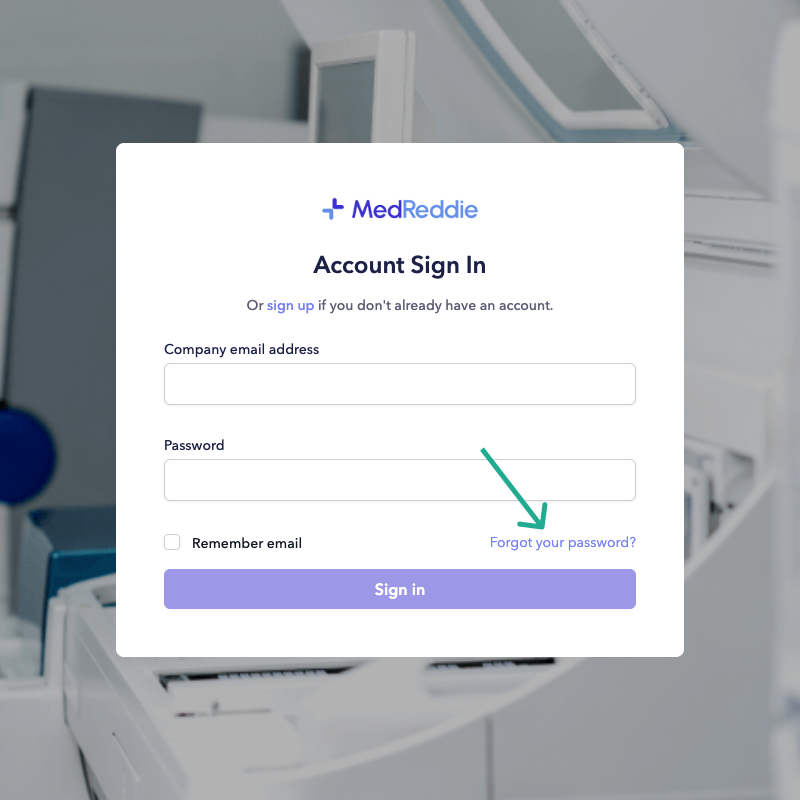
If you already have an account, but you’ve forgotten your password, not problem. Simply go to the login page and click “Forgot Password”
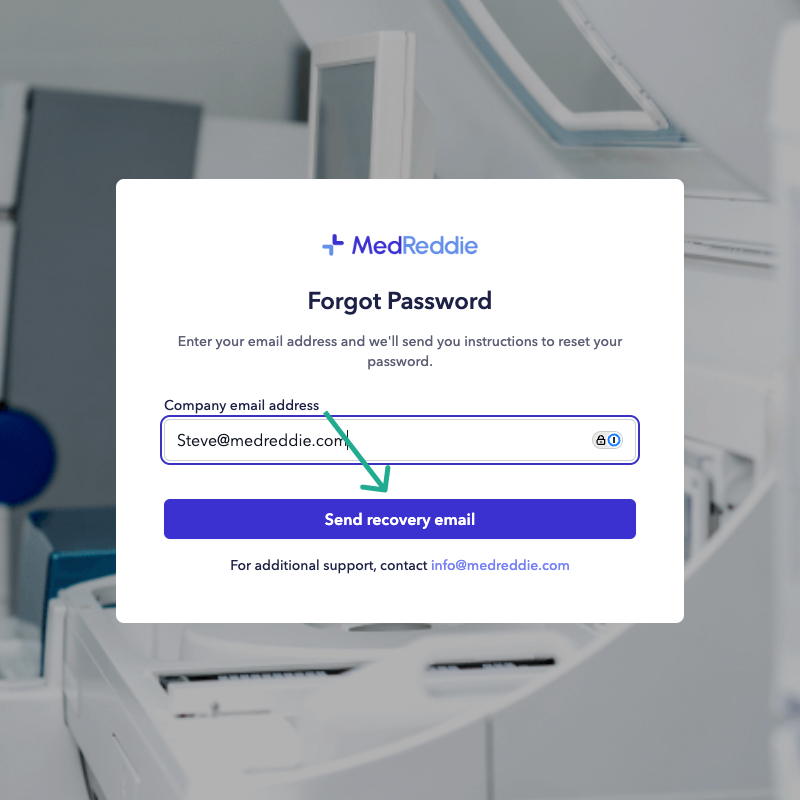
You will then be prompted to add the email associated with your account, and then once you click “Send Recovery Email” and email will be sent to the email provided.
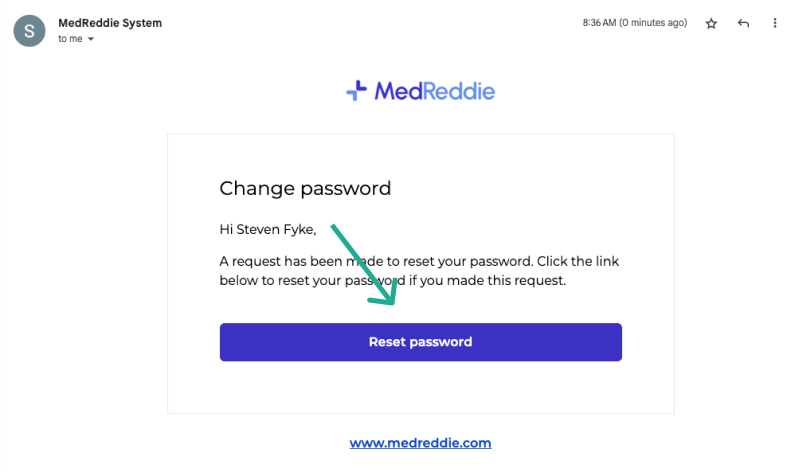
Check your email for a message sent from “MedReddie System”. It may be in your spam if you don’t see it. Open that email and click the “Reset Password” button.
It will take you back to the MedReddie Platform where you can add a new password. Please use a password that is at least 8 characters long and contains at least:
- 1 number
- 1 capital letter
- 1 lower case letter
- 1 symbol
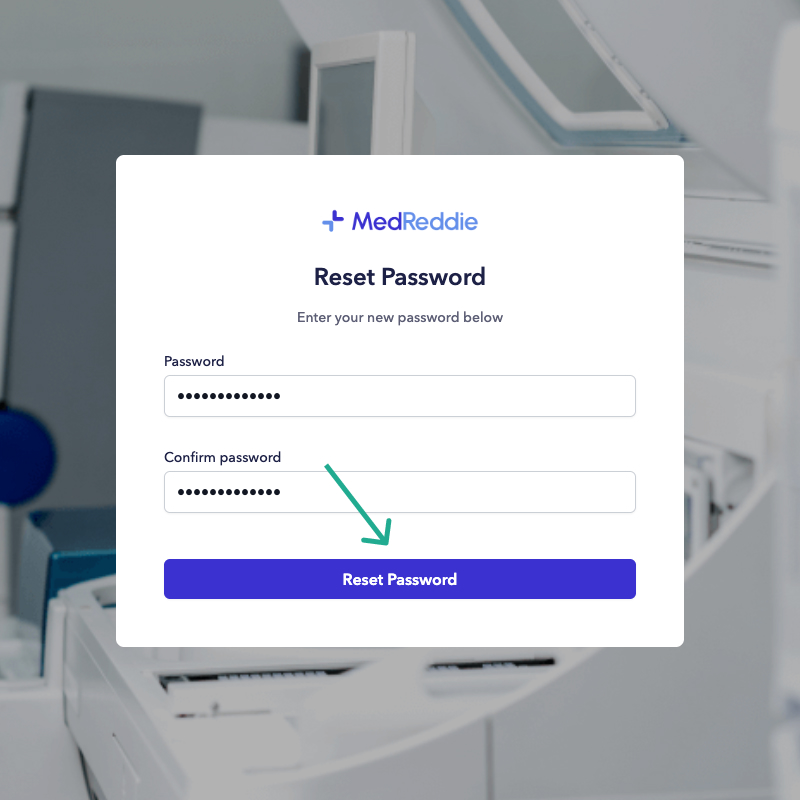
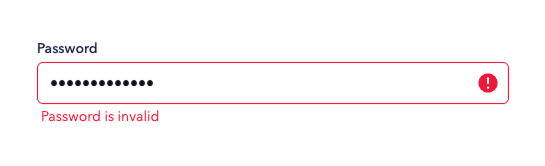
If you get an error like the one below, please edit the password to have 1 number, 1 capital letter, 1 lower case letter, and 1 symbol.